WooCommerce support
WooCommerce emails not sending: follow the order trail
Check the order, the notification and the delivery evidence separately. A successful SMTP test does not prove that a particular order email reached its recipient.

When WooCommerce emails are not sending, check the order event, notification settings and mail handoff in that order. An order appearing in the dashboard does not establish that an email was triggered or received. The checks below help you locate the missing stage before changing the mail setup.
Use one controlled test and keep its order reference. On a live store, agree the test with the owner and use an appropriate test-payment or staging method. Do not create real charges, repeatedly resend customer messages or change payment statuses simply to make an email appear.
Start with the order state and payment evidence
Inspect the affected order's status and notes. A checkout attempt, a completed payment and a notification trigger are different events. Check the payment gateway's evidence if the order appears unpaid despite a successful transaction. An email plugin will not repair a missing payment callback.
WooCommerce's email troubleshooting guidance explains common status and notification conditions. The exact trigger depends on the email type and workflow, so compare the affected notification with the current store configuration.
For a controlled test, record the order identifier, notification type, intended recipient and timestamp. Redact addresses before sharing logs. That small evidence set is more useful than saying that “all emails are broken”.
Check the exact notification and recipient
Open WooCommerce > Settings > Emails and inspect the relevant notification. Confirm that it is enabled and that recipient settings, where provided, are correct. Customer emails and administrative emails do not necessarily use the same destination or trigger.
The official email settings reference describes the controls. Labels can change between releases or extensions, so use the current installed version rather than an old screenshot from another shop.
If only one notification fails, compare it with one that works. An extension overriding a template or recipient can affect a particular path while password resets and SMTP tests continue to arrive. Keep the investigation specific.
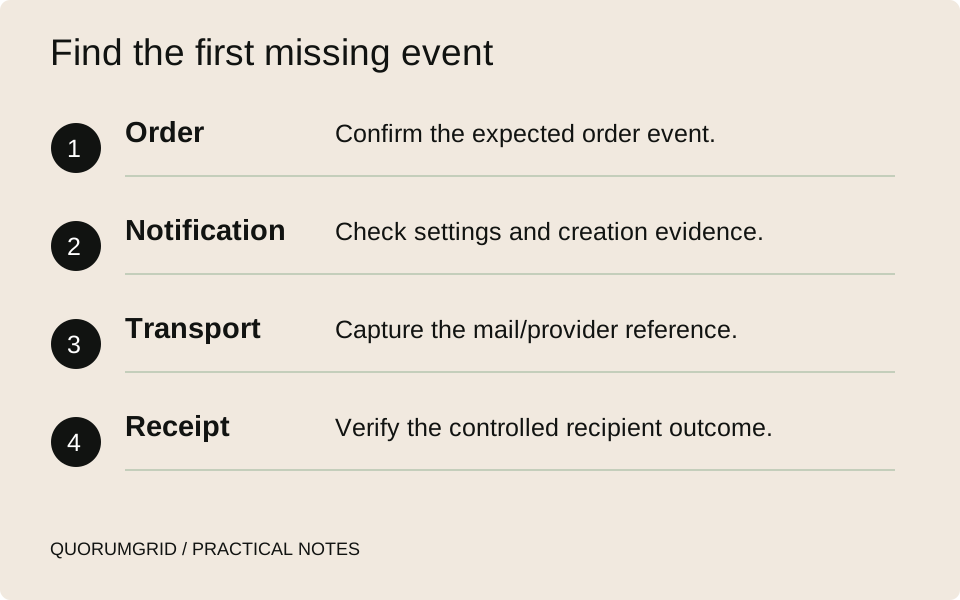
Find the first missing event
- Order
Confirm the expected order event.
- Notification
Check settings and creation evidence.
- Transport
Capture the mail/provider reference.
- Receipt
Verify the controlled recipient outcome.
Use a three-stage evidence sheet
| Stage | Evidence to find | What it does not prove |
|---|---|---|
| Notification created | Relevant order event and transactional-emails log outcome | That the mail provider accepted it |
| Mail handed off | Mail transport result or provider message identifier | That the recipient received it |
| Delivery investigated | Provider delivery/bounce events and recipient confirmation | That every future message will reach the inbox |
For WooCommerce transactional emails, open WooCommerce > Status > Logs and look for the transactional-emails source. WooCommerce's current guidance describes four outcomes: Sent, Failed, Disabled and Skipped. Sent records a successful handoff to the mail system, rather than inbox receipt. If expected entries are missing, check the store's logging settings and thresholds with its maintainer; confirm the installed version supports this log. Use provider events to investigate the next stage.
The WordPress wp_mail() reference explicitly distinguishes a successful sending-method result from actual receipt. Keep that boundary in your support notes. “Sent” in a local log is not an inbox-placement test.
A useful fictional support note might read: “Test order 1042 generated the expected notification. Provider reference captured. Recipient confirmed receipt at the recorded time.” Do not fill in a missing stage with an assumption.
Investigate the mail layer only when the trail points there
Check the site's mail plugin or hosting mail configuration, the sender address and the provider's events for the test reference. A rejected sender, authentication error, suppression or bounce needs a different correction from a missing WooCommerce trigger.
Keep account credentials out of screenshots and support tickets. If domain authentication needs work, involve the person responsible for DNS and the actual sending provider. Copying unrelated SPF or DKIM records from a tutorial can break other legitimate senders.
After a correction, repeat the same agreed test once and reconcile the evidence. If the provider accepted the message but the recipient cannot find it, check the recipient's spam/quarantine controls and delivery events without promising that one successful test establishes universal deliverability.
Isolate conflicts on a safe copy
If the notification never reaches the mail layer, inspect relevant error logs and recent changes. Use a staging copy or an agreed maintenance process to isolate an extension or theme interaction. Preserve the current configuration so you can return to it.
Follow the current WooCommerce conflict-testing method. On a safe copy, reduce the setup in a controlled way, reproduce the exact failure and reintroduce components one at a time. Broadly disabling extensions on a trading store can affect checkout, stock and integrations.
Make sure staging does not send messages to copied customer addresses or process real payments. A staging environment is only safe when its external connections are also controlled.
Close the issue with a repeatable check
Record the confirmed cause, what changed and the notification tested. Check both the administrative and customer path if both were affected. If you added logging, agree retention and access rather than leaving personal order details in an unrestricted file.
For example, a changed recipient address is a different resolution from repairing a payment callback or correcting the sender configuration. The handover should make that difference visible to whoever supports the store next.
Finally, connect the technical fix to the working customer journey. Can the team find the order, can the customer understand its status and is there a fallback contact route? Our maintenance checklist can help assign those ongoing checks.
Sources and further reading
Technical references for this guide. The checklists and examples are our practical recommendations, adapted to the subject.