WordPress recovery
WordPress white screen of death: a safe recovery order
A blank page is a symptom, not a diagnosis. Preserve what changed and use the error evidence before replacing files or restoring an old database.

A blank WordPress page, often called the WordPress white screen of death, can affect the public site, the dashboard or one action such as checkout. First identify what still works, record the failure and check for a recovery email or relevant error log. Then investigate the cause with a way to restore the current state.
This guide is a recovery decision path, not a command to run every possible fix. If the site handles live orders or enquiries, involve the person responsible for hosting and backups before making changes that could remove newer business data.
Find the smallest reproducible failure
- Open the homepage, the affected page and the WordPress login screen. Note which routes fail and whether you are signed in.
- Write down the failure time and any recent plugin, theme, PHP or content change. Save the visible error without account details.
- Check the site administrator's inbox and spam folder for a recovery email; the Recovery Mode step explains the next action. If none arrived, ask the host for the relevant error-log entry.
WordPress lists PHP and database problems among the causes of a white screen. That range is why a blank page alone does not identify a plugin, prove a hack or establish that more memory is the answer.
Use an observation sheet: affected route, user state, time, response status, last known working time and recent changes. If only one template fails after an update, preserve that narrower lead rather than immediately restoring the entire website.
Protect the current data and recovery options
Ask the host to preserve available logs and take an appropriate current copy before modifying the installation. Keep a known-good backup separate. A copy of a broken site can still be valuable evidence, while a known-good copy is a recovery option; label them clearly.
A complete WordPress recovery may involve both files and the database, as the backup handbook explains. Do not assume a content export is a full installation backup.
If you restore yesterday's database, today's orders or enquiries may disappear. Agree the impact, preserve new records appropriately and plan the timing. Recovery should not quietly exchange a visible page failure for missing business data.
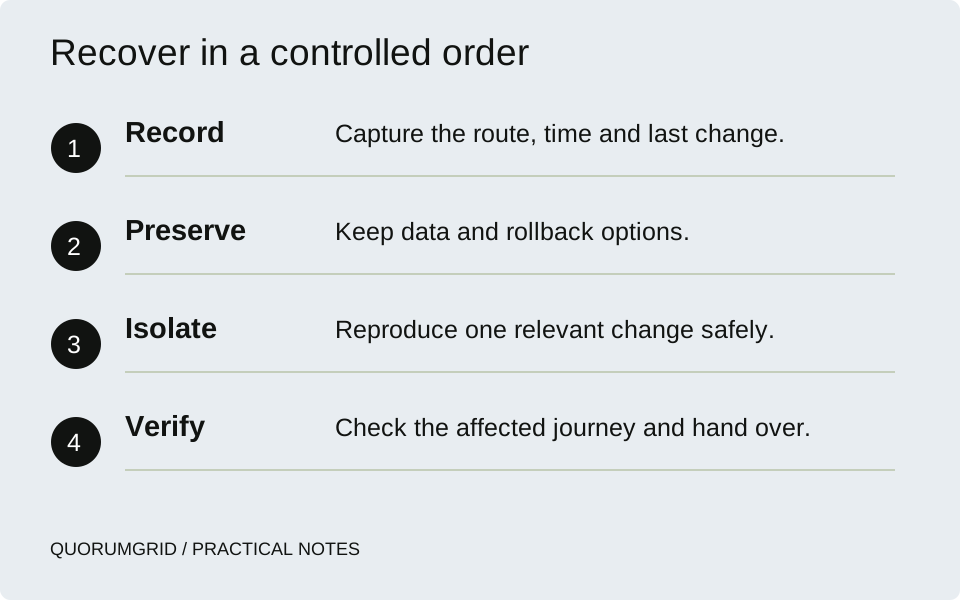
Recover in a controlled order
- Record
Capture the route, time and last change.
- Preserve
Keep data and rollback options.
- Isolate
Reproduce one relevant change safely.
- Verify
Check the affected journey and hand over.
Use Recovery Mode when a link is available
WordPress's Recovery Mode can help regain dashboard access for some fatal errors. Use the site-specific link from the administrator email, log in and note the component WordPress identifies. A plugin or theme may be paused for that recovery session; the public site can still need a repair. Treat the link as private, preserve the current state and agree the correction before changing live components.
Read the error without exposing it to visitors
Start with the host's PHP/application error log around the recorded failure time. A relevant fatal error can point to a file, component and operation. A log entry elsewhere in the day may be unrelated, so reproduce the problem in an agreed safe environment and compare timestamps.
If WordPress debugging is needed, follow the current debugging documentation. Keep error display away from public visitors and protect any log containing paths, tokens or personal data. Enabling debugging is a diagnostic step, not a repair.
Once the investigation ends, remove temporary debugging settings and deal with captured logs under the agreed access and retention policy. Do not leave a publicly accessible debug file as part of the permanent solution.
An example of a controlled investigation
Fictional sequence, not a completed client repair
A service page becomes blank after an extension update. The homepage still works. The relevant error points to a function call inside that extension's integration with the service template.
The team preserves the current state, reproduces the failure on an isolated copy and checks the same route with the integration disabled. The page works there. That narrows the investigation; it does not yet prove every feature works with the component removed.
The team then tests a supported correction, checks the affected form and other templates, and records a rollback route before applying the agreed change.
The important part is the chain of evidence. A plugin name in a stack trace is useful context, but the final explanation should describe the interaction actually reproduced. Avoid claiming a confirmed root cause when all you have is a suspicion.
Change one variable and check dependencies
Use a safe copy to test a suspected plugin or theme conflict. Follow an orderly isolation method and record each change. Renaming folders, replacing themes or changing PHP versions can alter several behaviours at once and make the original symptom harder to understand.
WordPress's troubleshooting guidance provides starting points when dashboard access is unavailable. If file or database recovery is outside your experience, ask the host or developer to carry out the step and preserve a rollback option.
A memory warning deserves investigation into the operation using memory. Increasing a limit may be an appropriate temporary measure in some cases, but it should not be presented as a universal cure for a leak, a runaway task or incompatible code.
Verify the website, not only the recovered page
After the correction, check the route that failed and the functions connected to it: navigation, forms, search, login and checkout where applicable. Clear the relevant cache carefully, then repeat the test in a normal visitor session.
Capture a short handover: evidence found, confirmed or suspected cause, changes made, business functions checked and remaining uncertainties. Include the software versions involved and a plan for the next supported update.
If the evidence indicates a compromise rather than an ordinary compatibility failure, widen the investigation. Our recurring-infection guide covers why removing one symptom may leave the access route open.
Sources and further reading
Technical references for this guide. The checklists and examples are our practical recommendations, adapted to the subject.